
Reference
Chrome extension
Install the MergeRamp Chrome extension to see your queue and PR progress directly inside GitHub.
Overview and install: MergeRamp for Chrome
Bring your merge queue into the GitHub workflow you already use. The MergeRamp Chrome extension puts your repository's queue and each PR's progress right where you review code, so you can see what's moving, understand what's blocked, and find your next step without switching tools.
Install and sign in
- Open MergeRamp in the Chrome Web Store and select Add to Chrome.
- Open the extension popup from Chrome's toolbar or Extensions menu, select Open MergeRamp, and sign in to MergeRamp in the same Chrome profile.
- If you have not connected a repository yet, follow Getting started.
- Open the repository or a PR on GitHub to view its queue status.
The extension uses your MergeRamp sign-in from the same Chrome profile, and you stay signed in for 24 hours. When it ends, the extension asks you to sign in again: open MergeRamp from the popup, sign in, and check that your browser allows the sign-in session. See your GitHub sign-in for other times you may need to sign in again.
Features
- Your repository's queue inside GitHub: Open Merge queue from the repository navigation to see queued PRs and their status in one list.
- PR progress at a glance: A status card on each open PR shows its queue position, progress, or what needs attention.
- A queue for each base branch: Switch between branches to follow work targeting
main, a release branch, or another enrolled branch. - From one PR to the whole queue: Use View queue on a PR's status card to see the queue for its target branch, then open any listed PR.
- Clear blockers and next steps: See when a PR needs approval, has a hold label, has failing checks, or needs a merge conflict resolved.
View a repository's merge queue
- Open a connected repository on GitHub and select Merge queue in the repository navigation. While pull requests are queued, the tab shows how many.
- Choose the target branch from the Base branch selector at the top of the queue.
- Scan the list to see which PR is active, which PRs are waiting, and what is blocking progress. Select a PR's number or title to open it on GitHub.
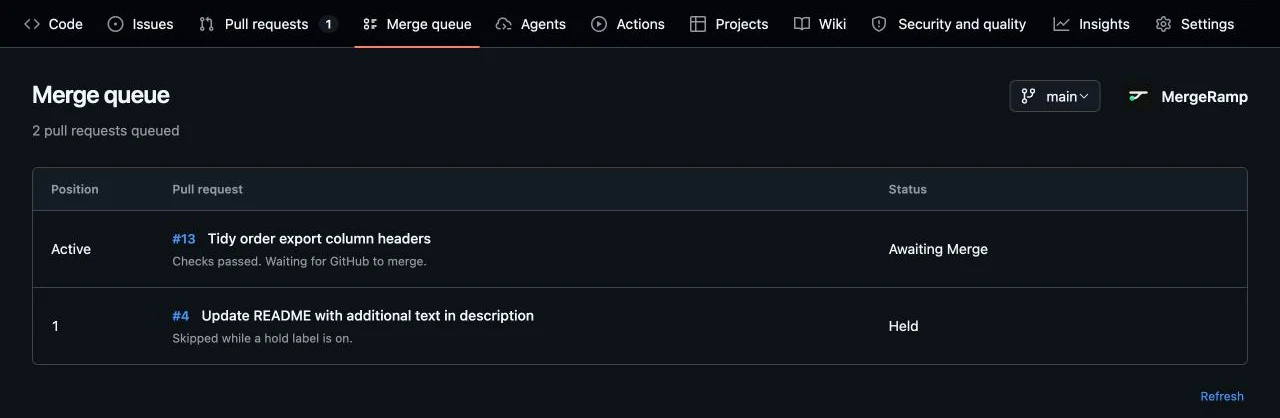 The Merge queue tab for main: the active PR is waiting for GitHub to merge it, and the next PR is skipped while its hold label is on.
The list has three columns:
| Column | What it shows |
|---|---|
| Position | Active for the PR currently being processed, or the PR's numbered queue position |
| Pull request | The PR number and title, with an explanation of its current progress or blocker |
| Status | The PR's queue status, with merge conflicts called out separately when present |
The active PR appears first. For how priority and holds affect the order, see Ordering and priority.
Use the Refresh button next to the base branch selector to check for updates. It spins while the queue is updating. If a notice says the view is out of date or partial, some current information may be missing; check the relevant PR on GitHub before relying on the list.
Join or leave a queue
Use GitHub's Enable auto-merge and Disable auto-merge controls. The PR card shows status and a View queue link. Your GitHub branch rules and queue eligibility still apply.
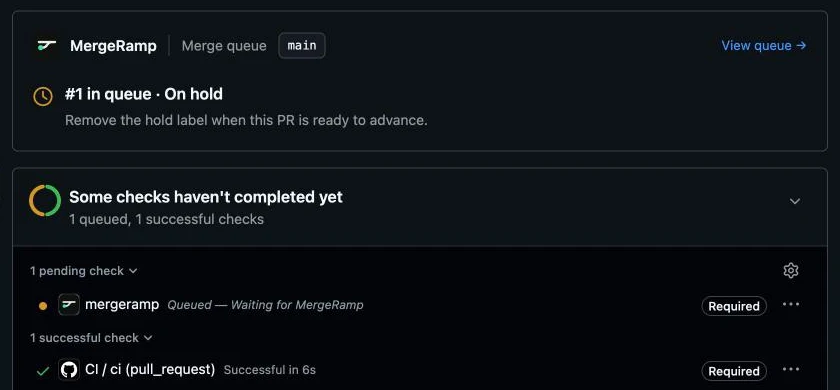 A PR status card for a held PR: it shows the PR's queue position, why it is not advancing, and what to do next.
The card shows Queued, Checking, Waiting for merge, or a reason the PR is blocked. Waiting for merge means the PR's mergeramp check has passed in strict mode; passing CI alone is not enough. The card disappears once GitHub confirms that the PR is closed or merged.
Refresh and troubleshoot
- After enabling auto-merge, pushing a commit, or removing a hold, give the status a moment to update. Use Refresh if needed.
- If you see Queue status unavailable, use Retry and check the PR on GitHub. Any last-known status may be out of date.
- If you see a setup message, follow its link to connect your organization, join the workspace, or enroll the branch.
- On a repository owned by an organization or personal account you don't belong to, such as an open-source project you are browsing, the extension shows Check MergeRamp setup instead of a queue. MergeRamp shows queues only for organizations you are a member of, so no action is needed unless you expected to see this repository's queue. In that case, check that you are a member of its GitHub organization.
- If the PR card is missing, use the repository's Merge queue link or open your workspace.
For a PR that is visible but not progressing, use the waiting PR checklist.
Still have a question? Contact support with your repository, PR link, and the status you see.